PhysPlot GUI Walkthrough
PhysPlot is a table-first scientific plotting and workflow application. You import data into the central table, assign column roles, transform columns, and plot through plotter modules. Every step is recorded in a protocol that can be replayed, exported as Python, and run over whole folders of files.
This walkthrough uses the sample files in the repository’s test_data/
folder, so you can follow it exactly. Numbered red markers in the screenshots
match the numbered notes under each figure.
Main window overview
Importing data
Choosing column roles
Transforming a column
Generating, editing, and templating a plot
Adding fit functions
Building and replaying the protocol sequence
File loaders for instrument formats
Exporting processed data
1. Main Window Overview

Figure 1. The main window with an XRD scan loaded (test_data/XRD/schema1.5_scan.XRDML).
Mode switcher. Simple shows the three everyday panels. Advanced shows the protocol builder (Build Protocol) and bulk runs (Run Sequence).
Column headers. Each shows the column number and name. Double-click a header to rename the column. Right-click it to rename, copy, paste, or delete the column.
Role row. Each column’s dropdown sets its role: Ignore, X, Y, X Error, Y Error, Group, Label, Batch Key, or Fit Weight. Loaders suggest roles.
Data cells. Edit, paste, or clear values. Right-click a row number to copy, paste, or delete rows. Every edit is recorded in the protocol.
1. Data Importer. Choose a loader and import or export data.
2. Mathematical Transformation. Create a new column from an existing one.
3. Plotter Module. Choose a plotter, plot type, template, and optional least-squares fit, then generate the plot.
Status bar. The last action or error (hover for the full text), row and column counts, and the file name.
The native menu bar has File, Protocol, View, Plot, and Help
menus. File > Open Config Folder opens Documents/PhysPlot/config/, and
File > Reload Config Modules re-scans it without restarting. Help links
to this documentation, the repository, the issue tracker, and the About dialog.
When the window is narrower than the three Simple Mode panels, the panel row scrolls sideways, so PhysPlot fits laptop screens.
2. Importing Data

Figure 2. The Data Loader menu.
In 1. Data Importer, keep Auto Loader selected. It picks the loader from the file extension: CSV, TXT/DAT/TSV/MSA, Excel, XRDML, and any format a loader plugin declares (for example Rigaku
.rasor JCAMP-DX.jdx).Click Import Data and choose the file.
Instrument exports load directly, even when they have metadata above the data,
tab-separated values in a .csv, or spectra stored as rows. See
Data Import for every format.
3. Choosing Column Roles

Figure 3. A Panalytical CSV export with suggested roles.
Headers come from the file. The instrument’s
[Measurement conditions]block above the data is skipped and kept in the dataset metadata.Roles are suggested (
Angle→ X,Intensity→ Y). Change them with the dropdowns: one X, one Y, optional X Error / Y Error, and Ignore for unused columns.
4. Transforming a Column

Figure 4. The Function menu. Built-in transforms come first, followed by
every plugin in config/transformations/. Hover over an entry for a
description. subtract first value subtracts one constant and is not a
background fit; XRD: Baseline Remove fits and removes a smooth background.
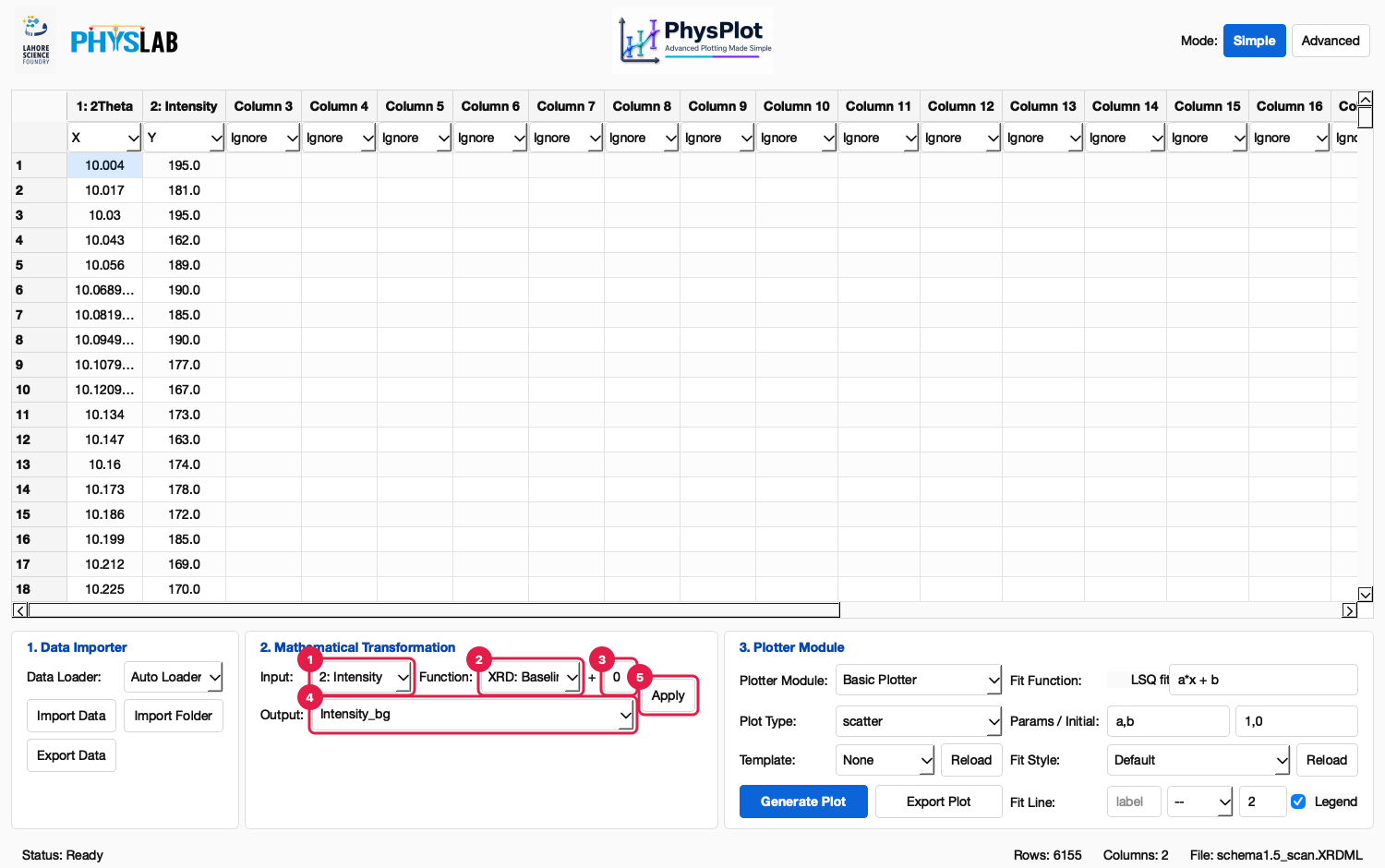
Figure 5. Removing the background of an XRD scan.
Input is set to the Y column whenever new data loads.
Function:
XRD: Baseline Remove.+ offset is added to the result (
transform(values) × multiplier + offset).Output: a new column name, or an existing column to overwrite.
Apply runs the transformation and records it in the protocol.

Figure 6. The result. (1) The new column Intensity_bg appears; (2) its
values sit near zero between the peaks.
5. Generating, Editing, and Templating a Plot

Figure 7. Plotter Module controls.
Plotter Module: Basic, Histogram, Scatter, Line, Error Bar, Overlay, Subplot Grid, Nanoindentation, Oliver-Pharr, and modules from
config/plotter_modules/.Plot Type: for Basic Plotter,
scatter,line, orscatter_line.Template: a saved appearance from
config/templates/. Reload re-reads the folder.LSQ fit: overlay a least-squares fit, with Fit Function (for example
a*x + b), Params / Initial, Fit Style, and Fit Line options.Generate Plot renders the plot and opens it in the Figure Editor.
Export Plot saves the figure to an image file.

Figure 8. The Figure Editor. Open it with Advanced Styling… in a plot window; click any part of the figure to edit it. Figure Explorer lists the figure’s parts. Property Inspector edits titles, labels, legends, axes, spines, markers, lines, and fonts. Save the styling with Figure Editor > PhysPlot > Save as Template, then choose it in Simple Mode’s Template dropdown for the next plot. Neither Figure Editor edits nor the Template choice are recorded in the protocol: a template restyles plots you generate in the GUI, while replays and bulk runs draw each plot with the plotter’s own look plus any recorded LSQ fit.
6. Adding Fit Functions
For a quick fit, tick LSQ fit in the Plotter Module (Figure 7, marker 4). The fit is stored in the protocol’s plot step and replayed with it.
For interactive fitting in the Figure Editor, select an axes, line, or scatter
series and choose Figure Editor > Fitting > Add Fit Function. The dialog
accepts expressions such as a*x + b, a*x**2 + b*x + c, or
a*np.exp(b*x) + c with parameter names and initial guesses. The fitted
curve is added as a Matplotlib line that can be styled and saved into a
template. See Curve Fitting.
7. Building and Replaying the Protocol Sequence

Figure 9. Advanced Mode > Build Protocol.
Protocol table: one row per recorded step (File Loader, Transform, role changes, Generate Plot). Status fills in when the protocol runs. Delete removes a step and replays the rest. Right-click a row and choose Rerun from this step to resume there.
Table shows the rows.
Code shows the same protocol as editable Python.
Import Sequence.py, Export Sequence.py, Apply This Sequence, Copy as Script, and Clear Sequence.

Figure 10. The protocol as Python. (1) WORKFLOW_STEPS lists the steps,
for example TransformColumnStep(function_name='14_xrd_baseline_remove', ...).
(2) Apply Code to Table rebuilds the rows from your edits. Invalid code is
reported with its line number, and the protocol is left unchanged.
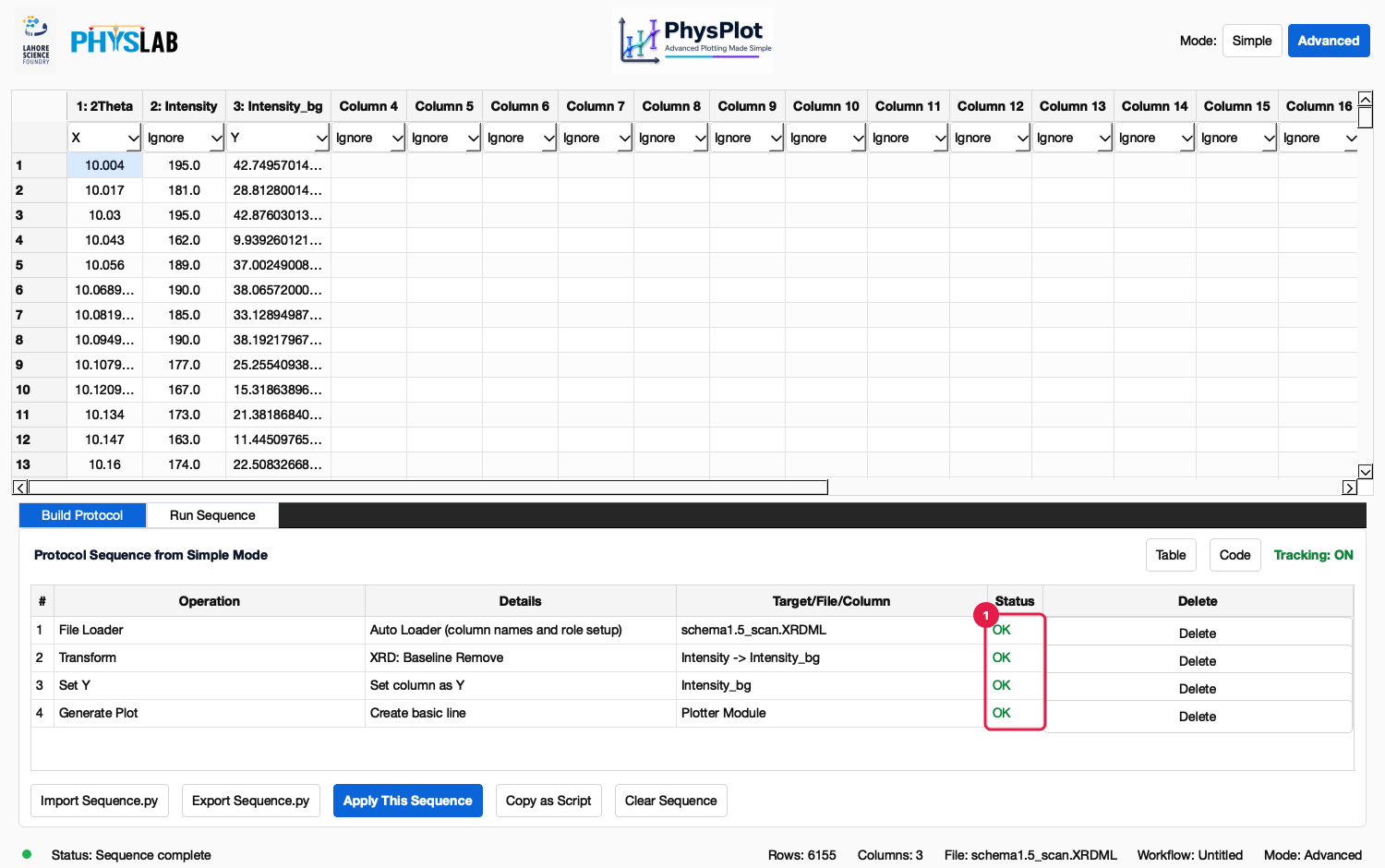
Figure 11. Protocol > Apply This Sequence (Ctrl+R). (1) Every row reports OK, Failed, or Skipped. After a failure the later rows are skipped, the table keeps the state reached before it, and the row’s tooltip explains the error.

Figure 12. Advanced Mode > Run Sequence.
Input Folder: the files to process.
Sequence File: optional; leave blank to use the current protocol.
Output Folder: one subfolder per input file.
Run Bulk Workflow starts the run.
The protocol that will run.
The status bar reports
Bulk complete: N outputs, or names the file that failed.
See Protocol Sequences for details, and Function Plugins for how plugin transformations replay headlessly.
8. File Loaders for Instrument Formats

Figure 13. A Rigaku SmartLab ``.ras`` scan opened with Auto Loader.
Auto Loader uses the Rigaku RAS Loader (XRD) plugin, because it declares
FILE_EXTENSIONS = [".ras"].Import Data.
The loader’s columns,
2ThetaandIntensity(attenuator-corrected).The loader’s roles:
2Thetais X,Intensityis Y.
Loader plugins live in config/data_importers/. Each defines title and
load_data(file_path), and optionally COLUMN_NAMES,
DEFAULT_COLUMN_ROLES, and FILE_EXTENSIONS. Add a file there, choose
File > Reload Config Modules, and pick the loader in Data Importer (or
let Auto Loader choose it by extension). See File-Loader Plugins.
9. Exporting Processed Data
Click Export Data in 1. Data Importer and choose a folder. PhysPlot writes:
data.csv: the current table.columns.csv: one row per column with its number, name, role, type and unit, and whether a transformation created it.workflow.py: the protocol that produced the table.plot.pngandfit.json: when a plot or fit exists.
To save only the protocol, use Protocol > Export Sequence.py…. To save the figure, use Export Plot or the Figure Editor.
Complete GUI Workflow Summary
Launch PhysPlot.
Import a file with Auto Loader, or enter data in the table.
Check the suggested X and Y roles.
Apply transformations (the input defaults to the Y column).
Choose a plotter, plot type, and template, then Generate Plot.
Style the figure in the Figure Editor and save it as a template.
Review and replay the protocol in Advanced > Build Protocol.
Export the protocol as
Sequence.py, or run it over a folder with Run Sequence.Export the processed data and the figure.
Notes for Extending PhysPlot
Reusable modules live in config/; copies in Documents/PhysPlot/config/
override the bundled ones:
config/data_importers/: file loaders (FILE_EXTENSIONSfor Auto Loader)config/transformations/: Mathematical Transformation functionsconfig/fit_functions/: curve-fit modelsconfig/templates/: plot style templatesconfig/plotter_modules/andconfig/plot_types/: plotters and plot-type presetsconfig/protocol_modules/,config/sequences/,config/pipelines/: reusable protocol pieces
See Modularity and Auto-Loading Map for the full map.